powershell / ai / agents / automation
Build a Custom Agent Harness with PowerShell and PSAISuite
Build a small PowerShell agent harness with PSAISuite, give it real tools, and customize its context and execution limits for the task.
You already have PowerShell functions that inspect files, query services, and return useful objects. Put those capabilities in reach of a model, give it instructions, and you have the foundation of an agent.
The harness is the code that makes those pieces work together. It determines what the model sees, which tools it can call, and how execution proceeds.
LangChain’s How to Build a Custom Agent Harness describes the importance of matching that surrounding code to the task. You can apply the same principle in PowerShell.
Let’s build a small harness using PSAISuite. We’ll start with a model, tools, and a system prompt, then make the tool surface more specific to the work.
Start with PSAISuite
Install and import the module:
Install-Module PSAISuite -Scope CurrentUser
Import-Module PSAISuite
Configure the API key for the provider you plan to use. PSAISuite uses environment variables such as OpenAIKey and AnthropicKey; see the repository setup instructions. The examples below assume your provider credentials are already configured.
At the center is Invoke-ChatCompletion. It accepts messages, a model, and tool definitions. You can supply PowerShell command names as tools, and PSAISuite handles their registration and the supported provider’s tool-calling loop.
That gives us a useful building block for our own agent interface.
Configure the harness
Use New-AgentHarness to choose the model, tools, instructions, and iteration limit. These choices define the harness for the task. Call GetResponse to run a request through PSAISuite’s model/tool loop.
Give it a real tool
Create a harness with a file-listing tool:
$harness = New-AgentHarness -Tools Get-ChildItem
$harness.GetResponse('Use Get-ChildItem to list the files in the current directory.')
The model receives the tool definition, can request a call to Get-ChildItem, and uses the returned information to answer. The filenames come from your environment.
Follow the request through the diagram below. The harness supplies the prompt, instructions, and available tools to the LLM. The model can respond directly or request a tool call when it needs evidence from the environment.
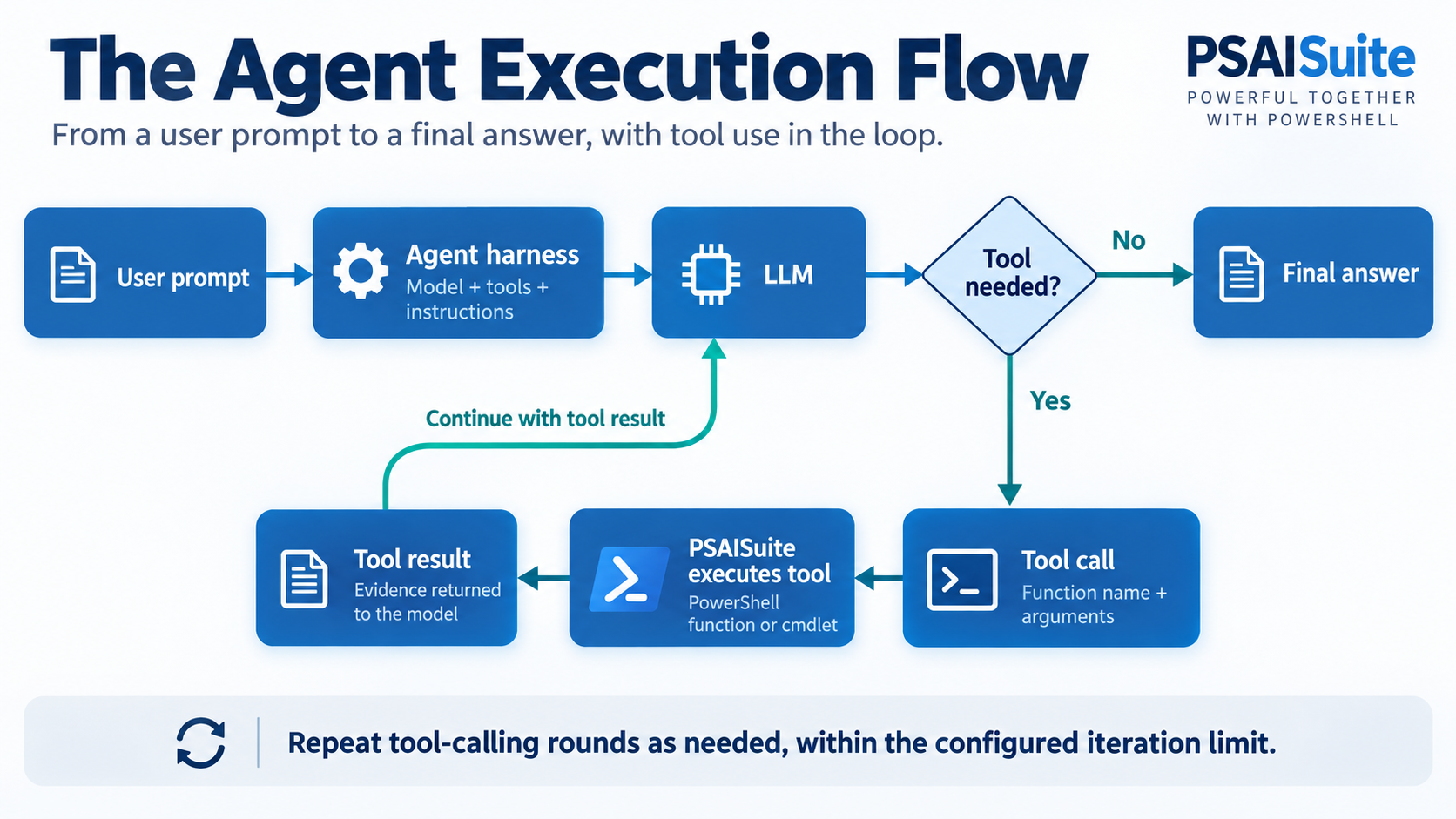
The return arrow is what makes this an agent loop. A tool call contains a function name and arguments; PSAISuite executes that function and sends its result back to the model. The model can then use that evidence to answer or request another tool call, within the configured iteration limit.
For our file-listing example, the evidence is the output of Get-ChildItem. The answer depends on the directory where you run it. Your PowerShell tools determine what the agent can inspect, and the information they return shapes what it can explain. That makes tool design the next part of customizing the harness.
Fit the harness to the job
Get-ChildItem is a convenient first tool. A particular task often benefits from a smaller, more deliberate interface.
Suppose the job is to identify large files in the current directory. We can do the sorting and selection in PowerShell, then give the model a compact result to explain.
Define this function in the same PowerShell session before creating the next harness:
function Get-LargestCurrentDirectoryFiles {
    <#
    .SYNOPSIS
    Returns the largest files directly inside the current directory.
    #>
    param(
        [ValidateRange(1, 20)]
        [int]$Count = 10
    )

    Get-ChildItem -LiteralPath (Get-Location).Path -File |
        Sort-Object Length -Descending |
        Select-Object -First $Count -Property Name, Length, LastWriteTime
}
Now build a harness around that focused capability:
$fileHarness = New-AgentHarness -Tools Get-LargestCurrentDirectoryFiles -SystemPrompt @'
Use the tool to find large files and report their names and sizes in bytes.
'@

$fileHarness.GetResponse('Which five files here are largest?')
This is where harness design becomes concrete. The tool performs an exact operation. The model chooses the count and explains the evidence. The instructions describe what a useful answer should contain.
The function also enforces behavior independently of the prompt: the count must be between 1 and 20, the listing is nonrecursive, and the output includes only three properties. Those decisions reduce the amount of data sent back to the model.
The scope of an agent comes from the implementation of the tools you expose.
Keep execution bounded
Our harness carries MaxIterations and passes it to PSAISuite. For its OpenAI and Anthropic tool workflows, this limits the number of tool-calling rounds.
$fileHarness.MaxIterations = 3
$fileHarness.GetResponse('Show the three largest files in this directory.')
A round limit provides a stopping boundary. It does not guarantee that the task will succeed within that boundary, and it is not a token or spending budget.
Other controls belong at equally concrete points. Validate arguments inside your tools. Prepare and reduce evidence before returning it. If a tool can change external state, implement the required permission checks in its execution path.
Keep the harness inspectable
The harness remains a PowerShell object:
$fileHarness | Format-List Model, Tools, SystemPrompt, MaxIterations
You can change its instructions or tool list without changing GetResponse. You can also choose another model supported by your installed PSAISuite version and account:
$fileHarness.Model = 'anthropic:claude-sonnet-4-5-20250929'
That example requires Anthropic credentials and access to the selected model. Provider and model tool support still matter; the shared command interface does not make every model interchangeable.
Conversation history, summarization, retries, and output validation are further harness decisions to consider as the job grows.
Build around your PowerShell capabilities
The same pattern works with a function that retrieves failed build steps, summarizes service health, or gathers release evidence. Each tool determines what work can happen and what evidence the model receives.
Start with one useful function. Test it directly in PowerShell. Expose it through New-AgentHarness, ask a representative question, and inspect whether the answer is supported by the tool result. Refine the tool and instructions around the work you actually need done.
Your functions provide the capabilities. Your harness connects them to the task. PSAISuite runs the model/tool loop.
Get the module, examples, and source at dfinke/psaisuite on GitHub.